
You ask Claude for something that should take a minute, watch the answer start to appear, and then it stopYou ask Claude for something that should take a minute, watch the answer start to appear, and then it stops halfway with the Claude AI Output Generation Interrupted Error. It is annoying, especially when the reply was long and you were counting on it. At AI Tech Pulse, where we write about practical AI tools and how to get them working, this is one of the most common “why did it stop?” questions we see, so here is a calm, ordered way to deal with it.
The short version: the message means the response stopped before Claude finished writing it. The reason can be your connection, Claude’s servers, or the request itself. You do not need to test everything. Work from the quick checks down and stop when it works.
What the Claude AI Output Generation Interrupted Error Means
Claude sends its answer to you in a continuous stream. If that stream is cut off, you see an interruption instead of a finished reply. Three broad things can cause that:
- Your connection or browser dropped or blocked the stream.
- Claude’s side had a temporary problem, such as heavy demand or an incident.
- The request itself was very long or asked for a very large output.
A small honesty note: I could not find this exact wording explained in Anthropic’s public help pages, so treat the causes above as the likely ones, not a guaranteed diagnosis. What is documented is that Claude’s Help Center covers common error messages and separates temporary capacity limits from real service incidents. That distinction is useful, and we will come back to it.
Start With the Two-Minute Checks
Check whether Claude is having a problem
Open status.claude.com and look for active incidents. The Help Center points to this page for confirmed disruptions, including their scope and progress. If there is an incident, the best fix is to wait and try again later. Nothing on your end needs changing.
Also keep in mind that heavy demand is not always an outage. Anthropic describes capacity constraints as the system working normally while handling a lot of users at once, so a retry after a few minutes is often enough.
Copy what you have, then refresh
Before you reload anything, copy the partial answer if it is useful. A refresh can wipe it. If you plan to publish or share AI-written text, our explainer on the Claude watermark in 2026 is worth a read too.
Then reload the page and reopen the conversation. If the answer is still cut off, send a short follow-up asking Claude to continue from where it stopped. That is often better than resending your whole original prompt, because it avoids repeating the same heavy request.
When the Claude AI Output Generation Interrupted Error Keeps Happening in One Chat
When the error follows one specific conversation rather than your whole account, the chat itself may be the problem.
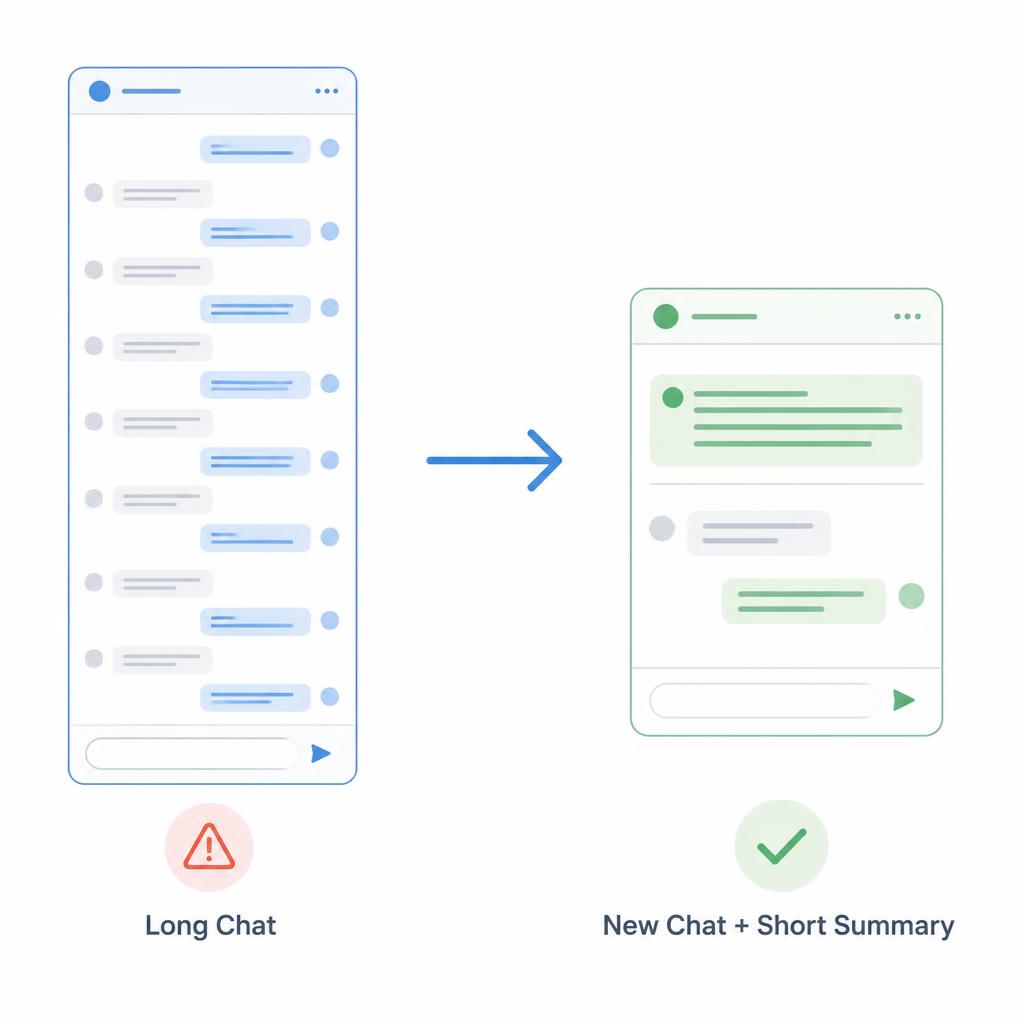
Long conversations
A very long thread can make each new reply heavier to produce. This can happen when you have been working in one chat for hours, with lots of pasted text and long answers. A simple test is to start a new chat and give Claude a short summary of what matters: the goal, the key decisions so far, and the part you are stuck on. If the new chat works, the old one was probably too bloated.
Very long prompts or huge outputs
One possible cause is asking for too much at once, such as a full report, a large block of code, or a long document in one go. Responses have a length ceiling, so a big request can stop before it is done.
Try splitting the job:
- Ask for an outline first.
- Request one section at a time.
- For code, ask for one file or one function per message.
The same habit helps with heavier research tasks. If you regularly ask AI for long reports, our guide to AI deep research tools in 2026 covers how to break big questions into manageable pieces.
If It Only Happens on Your Device or Browser
If Claude works fine for other people or on your phone but not on one computer, look at the browser side.
Test in a private window or another browser
Open Claude in a private or incognito window, or in a different browser. If it works there, something in your normal browser is interfering. That points to extensions, cache, or saved site data instead of Claude itself.
Turn off extensions
Ad blockers, privacy tools, script blockers, and download managers can interfere with pages that stream content. Claude’s Help Center recommends disabling active browser extensions when troubleshooting login errors, and it is a reasonable test here too. Disable them all, reload, and if the problem goes away, turn them back on one by one to find the culprit.
Clear cache and cookies (only if needed)
Clearing cache and cookies is another step the Help Center lists for account-related errors. Do this after the easier tests, because you will be signed out of some sites. Only clear data for Claude’s site if your browser lets you choose.
Check your network
Weak Wi-Fi, a VPN, or a restrictive work network can break a long response midway. Switch to another network, such as a phone hotspot, or turn off your VPN if that is allowed. The Help Center suggests avoiding a VPN when you have login problems, and long streamed answers can be sensitive to unstable connections as well.
Try the app or another device
If you normally use the browser, try the Claude app, or the other way around. If one works and the other does not, you have narrowed the problem to a specific setup, which is useful information if you contact support.
Quick Reference Table
| Problem | Likely Cause | What to Try |
|---|---|---|
| Error appears for everyone, in every chat | Service incident or heavy demand | Check status.claude.com, wait, retry later |
| Only one long conversation fails | Chat has grown too large | Start a new chat with a short summary |
| Fails on big requests (reports, long code) | Output too large for one reply | Split the task into sections |
| Works on phone, fails on computer | Browser, extension, or cache issue | Private window, disable extensions, clear site data |
| Fails on office or hotel Wi-Fi | Unstable network or VPN | Switch network, turn off VPN |
| Fails right after refreshing | Session or stale page data | Sign out and back in, then retry |
When to Contact Support
If none of this helps, go through Claude’s Help Center and contact support from there. It helps to have a few details ready: roughly when it happened, which browser or app you used, whether it also fails on another device, and whether the status page showed an incident. That saves everyone a round of back-and-forth. If you want to understand what these tools can and cannot do, our comparison of AI agents vs chatbots is a good primer, and our list of AI productivity tools for remote workers helps if you want a backup tool while Claude is having a bad day.
Frequently Asked Questions.
Frequently Asked Questions
Does this error mean my account has a problem?
Not necessarily. Most interruptions come from temporary service load, connection trouble, or a very heavy request. If it happens on every device and the status page is clear, then support is worth contacting.
Will I lose my conversation?
Usually the conversation stays, but the unfinished reply may be incomplete or missing. Copy anything useful before refreshing.
Can a long prompt cause this?
It can. If the problem only shows up with huge inputs or requests for very long outputs, splitting the task is the most reliable workaround.
Is it safe to keep retrying?
A few retries are fine. If it fails repeatedly, waiting a while or changing something (new chat, another browser, another network) is more useful than sending the same request again and again.
Conclusion
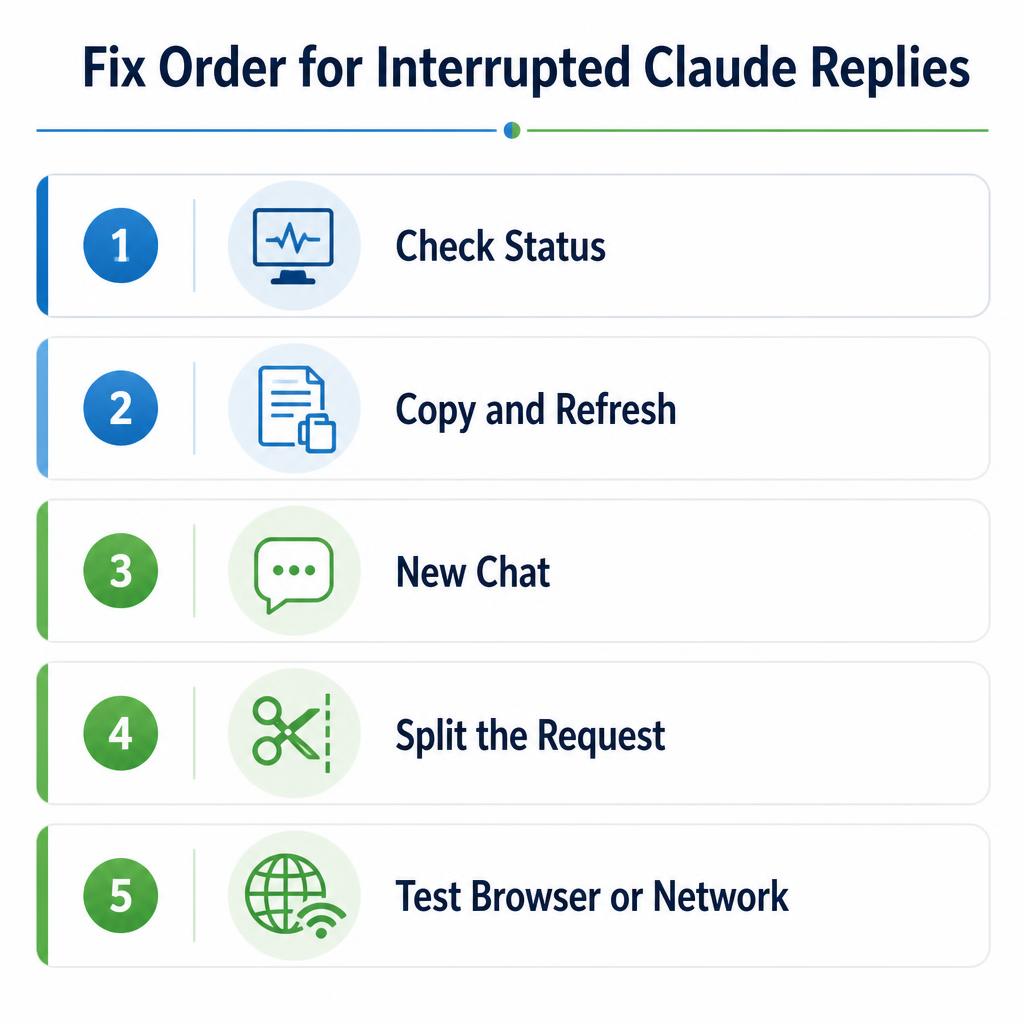
The Claude AI Output Generation Interrupted Error is frustrating, but it is usually fixable without anything technical. Check the status page first, copy your partial answer, and refresh. If the problem sticks to one chat, start a new one or split the request. If it sticks to one device, try a private window, disable extensions, or switch networks. No single step works for everyone, so change one thing at a time and you will quickly see where the problem lives.
For more practical guides on AI tools, keep an eye on AI Tech Pulse.