
AI for Excel and Sheets: The Ultimate Guide to Modern Spreadsheet Automation
We have all been there. It is late on a Friday afternoon, and you are staring at a massive spreadsheet filled with thousands of rows of unorganized company data. Suddenly, a complex nested formula breaks, and your entire screen fills with ugly error messages. You spend the next few hours hunting for a missing comma or a broken cell reference, feeling your sanity slowly slip away. For years, managing heavy data grids felt like a chore that required advanced engineering skills.
Today, things are completely different. By learning how to use AI for Excel and Sheets, you can transform those hours of frustrating manual work into a simple conversation with a smart digital assistant.
You do not need to be a coding genius or a math prodigy to automate your daily reports. Whether you are tracking retail sales in Toronto, organizing project timelines in London, or managing supply chains in Paris, modern tools can do the heavy lifting for you. All you need is the ability to explain what you want in plain, simple English.
In this guide, we will look at real-world data tracking examples, share exact prompts you can copy and paste immediately, and explore how to easily fix broken workbooks without breaking a sweat. For more setup tips, you can always visit our core tracking guides at AI Tech Pulse. Let us jump straight into the practical methods that will save you time every single week.
1. Automated Formula Generation: Moving Beyond Manual Syntax
Writing complex formulas from scratch used to feel like learning a foreign language. One wrong symbol could break a major corporate report. Now, you can simply describe what you want to calculate, and the assistant writes the exact formula syntax for you instantly.
Real-World Data Scenarios
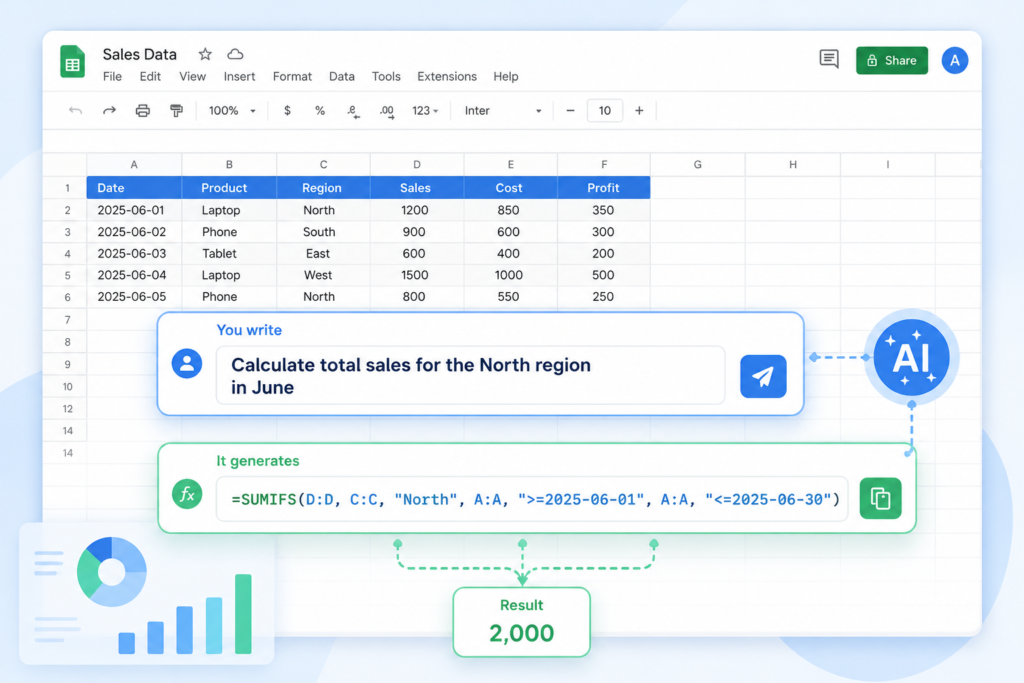
Imagine you run an online clothing store and have a huge ledger showing transactions across different continents. You have columns for “Order Date,” “Revenue,” “Region,” and “Status.” Your manager wants a quick report showing the total revenue from “North America” for orders placed after March 15, 2026, but only for items that were not returned.
Instead of opening the Microsoft Support Portal to figure out a complicated math formula, you can just type a natural sentence into your assistant:
Step-by-Step Prompting Framework
To get the perfect formula on your first try, follow this simple layout when talking to your assistant:
- The Setup: Explain what your sheet tracks (e.g., “This is a monthly employee payroll sheet”).
- The Map: Clearly state your column letters and headers (e.g., “Column A has employee names, Column F has hourly wages”).
- The Goal: Explain the final calculation you want in plain words.
- The Rules: Mention any specific dates, regional formats, or items to exclude.
Let us look at how different applications handle these formula requests:
2. VBA Macros and Google Apps Script: Automating Code with Ease
Automating repetitive tasks used to mean learning how to write heavy computer code. Recording standard macros often resulted in confusing scripts that broke whenever you altered your sheet layout. Now, you can use everyday words to generate clean automation scripts for any platform.
Bridging the Excel and Google Sheets Divide
The coding tools you use depend on your preferred platform. Microsoft Excel runs locally using Visual Basic for Applications (VBA), while Google Sheets operates entirely in the cloud using Google Apps Script (a language based on JavaScript).
If you are switching platforms, your digital assistant can easily convert old Excel VBA code into clean Google Apps Script. Let us look at a standard office scenario: you want a script that checks your active stock inventory in Column D. If any item drops below 50 units, the script should automatically highlight that entire row in a soft red color so your team spots it instantly.
Instead of browsing through technical manuals on the Google Workspace Help Center, you can give a simple instruction. Look at how clean the code blocks are for both systems:
The Excel VBA Macro:
The Google Apps Script Code:

3. Data Sorting and Cleansing: Cleaning Messy Tables Instantly
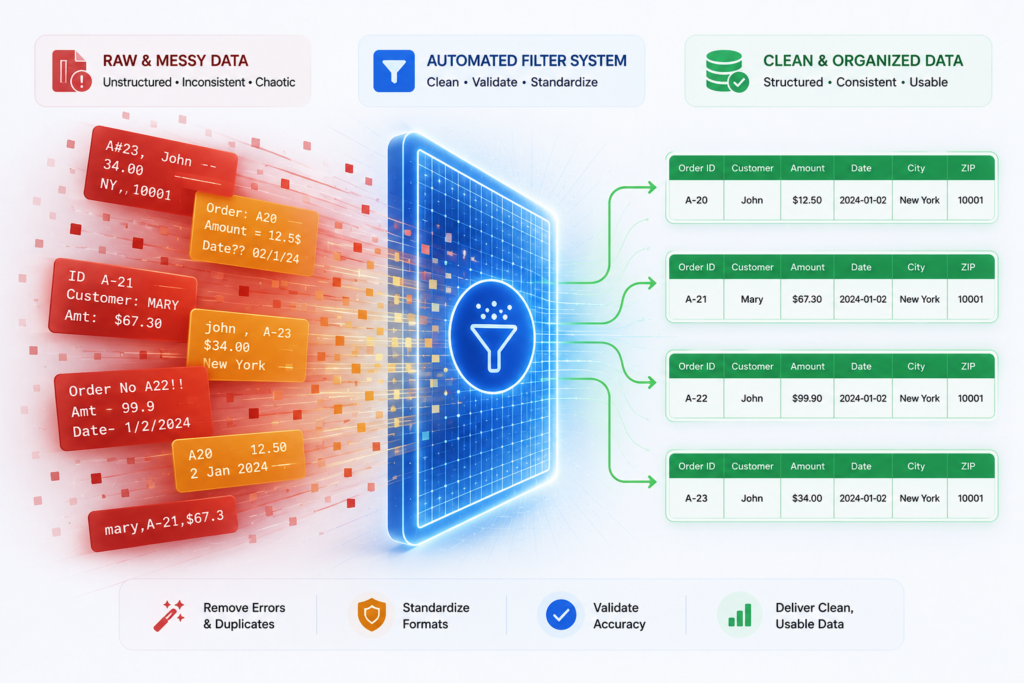
The most tedious part of any data job is cleaning poorly formatted tables. We have all seen messy files: lists where names are randomly capitalized, phone numbers are missing digits, and strange spaces break your lookups. Cleaning this row by row can ruin your whole day.
Smart Data Sorting
Instead of writing long chains of manual text functions like TRIM or SUBSTITUTE, you can let patterns do the cleaning for you. Imagine you have a messy text export in Column A that looks like this:
john.doe@company.com | (555) 123-4567 | NY _ New YorkSARAH.SMITH@ENG.ORG ; 1-555-987-6543 ; CA-San-Diego
You can copy a small snippet of this text into your assistant chat window and ask:
The system will give you the exact text extraction tool you need, often using clean pattern matching functions:
=REGEXTRACT(A2, "([A-Za-z0-9._%+-]+@[A-Za-z0-9.-]+\.[A-Za-z]{2,})")
This lets you pull out clean data rows all at once, ignoring any messy spaces or random symbols completely.
Simple Checklist for Fresh Data Exports
Whenever I download a raw data report, I always use these five quick automation rules to keep my files clean:
- Remove Hidden Spaces: Use string trimming to strip out invisible text padding.
- Fix Capitalization: Automatically change messy text into standard name casing.
- Align Date Formats: Turn mixed global dates into one uniform timeline layout.
- Separate Mixed Fields: Split combined values into clear, dedicated columns.
- Drop Duplicate Rows: Safely delete identical copy entries based on unique client IDs.
4. Advanced Error Troubleshooting: Fixing Broken Workbooks
It is a terrible feeling when an important company sheet suddenly stops working, filling your screen with strange warning codes. The most annoying part is that spreadsheets do not tell you why they broke. Instead of guessing, you can use your smart assistant to solve the problem immediately.
Understanding Common Error Codes
Let us demystify exactly what those confusing error flags mean under the hood:
#N/A: The search engine is looking for an item that does not exist in your target table. This is often caused by a minor typo or an accidental hidden space.#VALUE!: Your formula is trying to do math on text characters (like multiplying a word by a number).#REF!: Your formula points to a cell, row, or column that was completely deleted from the sheet.
When a formula breaks, do not delete it and start over. Copy the broken code, paste it into your assistant chat, and write:
The assistant will explain that data types must match perfectly. If cell A2 is saved as a number but your export list stores it as text, the lookup will fail. It then hands you the clean fix:
=IFNA(VLOOKUP(A2, VALUE(DataExport!B:D), 3, FALSE), "")
Wrapping your calculations in helpful safety nets like IFNA or IFERROR keeps your final layout looking tidy and highly professional, even when some data points are completely missing.
Five-Step Blueprint for Quick Sheet Repair
When a critical report breaks right before a big team presentation, follow this quick diagnostic routine:
- Check Your Data Types: Confirm that text fields, values, and dates are formatted the same way across all tables.
- Review Reference Ranges: Ensure no critical rows or columns were shifted or deleted by accident.
- Trace Formula Elements: Use evaluation steps to watch your calculations piece-by-step and find the error.
- Test Separate Blocks: Break long, nested formulas apart to see which specific function is failing.
- Apply Safe Wrappers: Use clean error-handling tools to catch exceptions gracefully and keep your workspace neat.
Modernizing Your Job Search with Digital Resume Tools and Career Automation
Landing a high-paying corporate job today feels completely different than it did just a few years ago. In the past, you could write down your work experience on a standard document, hand it to a hiring manager, and get a fair interview based on your real-world skills. Today, your application faces a digital gatekeeper long before a human ever lays eyes on it. Most international corporations use automated Applicant Tracking Systems (ATS) to scan, sort, and rank thousands of applications based on strict algorithmic patterns. If your document lacks the specific technical keywords and structural layouts these systems look for, it gets filtered out instantly.
When I began assisting colleagues with their corporate job searches last year, I noticed that incredibly talented data analysts and project managers were being rejected from positions they were overqualified for simply because their formatting didn't fit the machine's strict criteria.
That is when I started integrating specialized digital tools and advanced career workflows into our strategy. One of the absolute biggest hacks we discovered was highlighting a candidate's ability to use modern AI for excel and sheets to optimize data tracking. By treating the job search like an optimization problem and showcasing real-world experience with these intelligent systems, we were able to rebuild portfolios, clean up social profiles, and generate application packages that consistently pass automated filters.
This section shares my exact personal workflow for bypassing filtering systems and building high-income career portfolios that grab the attention of international recruiters.
When you use smart data assistants, you are essentially hiring a junior programmer who works at lightning speed but still needs clear, logical directions. If you want to expand your workspace tech stack further, check out our tested roadmap on the 10 Best Free AI Tools for Small Businesses to boost your output. Let us break down how these layers interact across different platforms.
2.1 Overcoming the Applicant Tracking System Gatekeepers
The absolute first step to a successful modern job hunt is understanding how corporate filtering machines read your documents.
These systems do not look at your visual design, your creative color schemes, or your custom fonts. In fact, complex multi-column layouts, decorative graphic lines, and embedded images usually scramble the parsing engine, forcing the system to label your application as unreadable trash. To win this game, I switched completely to a markdown-first and text-clean approach.
We started using modern processing frameworks that test how well text parses against specific job descriptions.
Instead of guessing which skills matter, you can analyze a corporate job listing to extract the core operational capabilities, core tools, and precise phrases the company values.
For example, if you are applying for a data-driven role, explicitly stating that you leverage AI for excel and sheets for predictive modeling and automatic report generation can immediately skyrocket your score. When the scanning machine spots modern automation expertise combined with standard data handling, it flags your profile as highly relevant.
By strategically placing these practical phrases into your professional summary and work history, you naturally increase your matching score without making your text look robotic to the human recruiter who reads it later.
For a deep look into how modern technology trends are shaping the future of work, you can always check out the latest tech guides and industry updates over at AI Tech Pulse.
Formatting Optimization Framework
🎨 Visual Anchor:

2.2 Rebuilding Your Professional Profile for Inbound Recruitment
Once your core application documents are built properly, the next crucial step is your digital footprint. Recruiters do not just wait for people to apply to their listings; they actively hunt for talent using advanced search features on corporate networks like LinkedIn. If your public profiles are not configured with the exact semantic queries these headhunters type into their search bars, you remain completely invisible to the global market.
When I am optimizing profiles, I treat the public summary like a search landing page. You need to sprinkle your main technical skillsets inside the main headline, the about summary, and the individual experience blocks.
For instance, if you want to catch the eye of companies looking to modernize their operations, explicitly showcasing your practical knowledge of AI for excel and sheets can give you an immense competitive advantage.
Recruiters love finding professionals who already know how to implement automated pipelines because it means less training time and immediate business value.
Furthermore, you should utilize automated tools to generate structured, value-driven descriptions for your historical work roles.
Instead of just listing your daily tasks, use structured frameworks to highlight your exact contributions, the tools you operated, and the measurable financial impact you created for your previous employers. For official guidelines on maintaining a compliant and professional presence on international job networks, reviewing the data standards on LinkedIn Business Help can provide exceptional foundational knowledge.
Profile Optimization Performance Indicators
📺 Tutorial Video
2.3 Creating High-Income Application Workflows and Portfolios
The final component of this modern career upgrade is scale and tailoring. One of the biggest mistakes I see professionals make is sending the exact same document to fifty different companies.
Recruiters can spot a generic application instantly, and it almost always goes straight into the trash bin. However, rewriting your materials by hand for every single application takes hours of tedious effort.
This is where career automation workflows become highly profitable. By setting up intelligent text processing pipelines, you can take a master document containing all of your career history and feed it into a smart system along with the specific job description of the company you want to target.
The system automatically cross-references the two texts and outputs a tailored cover letter and a modified project portfolio that highlights the exact experiences the target company wants to see.
If the position calls for extensive financial reporting, the pipeline will automatically emphasize your experience using AI for excel and sheets to optimize budgeting workflows.
This process doesn't fake your experience; rather, it shines a bright spotlight on the specific parts of your past work that match the current opening perfectly.
This gives you the speed of a bulk campaign combined with the surgical precision of an application that took days to write by hand. This is where career automation workflows become highly profitable. Mastering these setups doesn't just secure employment; it opens doors to scalable side streams. If you want to learn how to monetize these digital capabilities, read our definitive guide on how to Make Money with AI in 2026 for complete beginners. This process doesn't fake your experience; rather, it shines a bright spotlight on the specific parts of your past work that match the current opening perfectly.
3: Revolutionizing Corporate Messaging with Smart Email Flows and Communication Automation
Managing a modern corporate inbox can easily become a full-time job. Every single morning, millions of professionals log into their computers only to find hundreds of unread messages, urgent project updates, and automated notifications waiting for their response. Spending hours reading through these text chains and typing out custom replies leaves very little time for high-value strategic work. In fact, studies show that average office workers spend nearly thirty percent of their workweek simply trying to keep their email accounts under control.
When I felt completely overwhelmed by my daily message volume last year, I realized that typing every outreach message from scratch was an unscalable strategy. That is when I shifted entirely toward building structured, automated systems to manage corporate messaging. By setting up smart pipelines for professional outreach and customer follow-ups, I managed to reduce my writing time by eighty percent while significantly improving response clarity. This section outlines my personal framework for using modern automation to handle business copywriting, structure automated communication pipelines, and take complete control over noisy workplace notification systems.
The secret to highly effective professional outreach lies in personalization and timing. Sending out generic, mass-produced messages to potential clients or partners rarely yields positive results because people can instantly spot a template. However, manually customizing fifty unique outreach messages every afternoon takes a massive amount of physical time. To solve this, we can set up custom text processing systems that handle the heavy lifting for us, mirroring how we use AI for excel and sheets to sort data variables.
3.1 Designing Automated Smart Email Flows for Professional Outreach
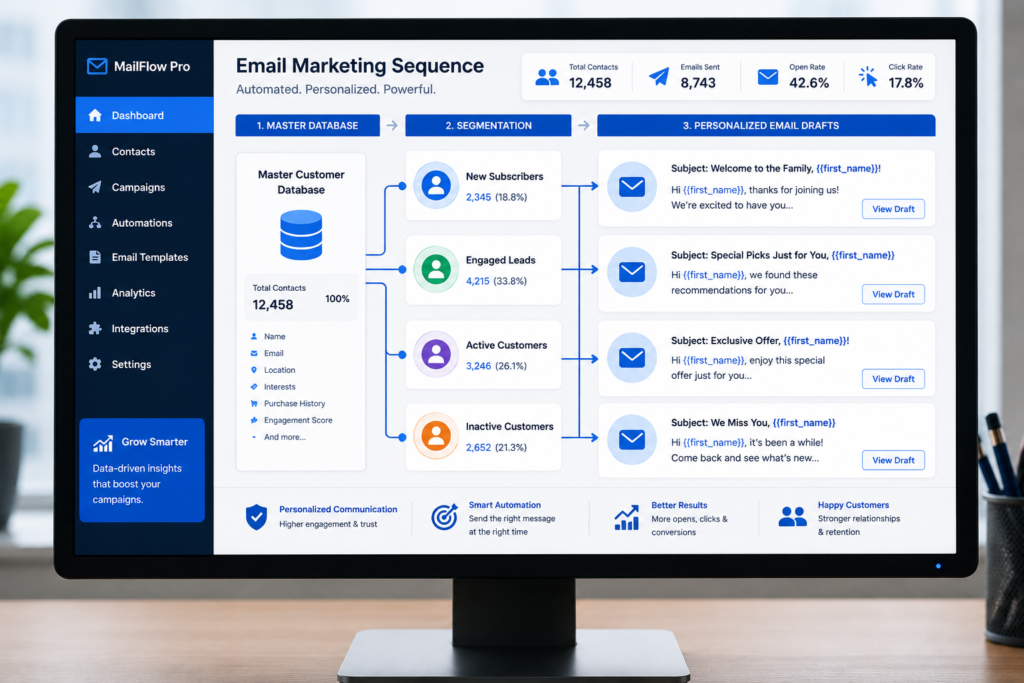
The secret to highly effective professional outreach lies in personalization and timing. Sending out generic, mass-produced messages to potential clients or partners rarely yields positive results because people can instantly spot a template. However, manually customizing fifty unique outreach messages every afternoon takes a massive amount of physical time. To solve this, we can set up custom text processing systems that handle the heavy lifting for us.
By utilizing structured text templates and combining them with specific company data points, you can build dynamic messaging sequences that adjust automatically to each recipient. For instance, if you are targeting business owners in the logistics space, your automated pipeline can read their public firm details and naturally adjust the core pitch to address logistics problems. This system allows you to launch complex, multi-day follow-up sequences that look exactly like they were written by a dedicated assistant. For more insightful analyses on how automated technology is changing the landscape of online business, check out the breakdowns at AI Tech Pulse.
Outbound Campaign Performance Metrics
3.2 Scaling Business Copywriting and Brand Consistency
Maintaining a consistent tone across all business documents is highly critical for any growing brand. Whether you are drafting a customer support response, an internal update for your department, or a sales announcement, the language needs to sound polished and professional. The biggest challenge occurs when multi-person teams write messages independently, leading to wild mismatches in brand identity.
To overcome this variation, I recommend building custom stylistic profiles within your writing software. You can feed your assistant examples of your best past announcements, define strict rules about word choices, and explicitly list corporate jargon phrases to completely avoid. The engine uses this blueprint to proofread drafts instantly, ensuring everything sounds unified. Furthermore, you can use these frameworks to translate complicated internal technical papers into simple, universal customer updates that non-native English speakers can understand effortlessly.
Maintaining a consistent tone across all business documents is highly critical for any growing brand. Whether you are drafting a customer support response, an internal update for your department, or a sales announcement, the language needs to sound polished and professional. Just like matching columns using AI for excel and sheets, the biggest challenge occurs when multi-person teams write messages independently, leading to wild mismatches in brand identity.
Style Control and Editing Efficiencies
3.3 Mastering Workplace Notification Management and Sorting
Receiving endless system alerts from team chat applications and task trackers destroys deep creative focus. When you are constantly interrupted by notifications every few minutes, your brain never gets the chance to solve complex, high-priority issues. The key to fixing this problem is replacing manual inbox organization with rule-based routing frameworks.
Modern intelligent notification tools can act as personal digital filters. By connecting your main channels to automated sorting pipelines, you can train your software to read incoming messages, determine their true importance, and sort them into appropriate folders. For instance, if an incoming message contains general industry news, the system moves it to a reading folder without popping up an alert on your screen. However, if a message flags a major database error or a direct client issue, the filter bypasses the queue and pings you immediately. This setup keeps your focus pure while guaranteeing that nothing truly critical slips through the cracks.
Receiving endless system alerts from team chat applications and task trackers destroys deep creative focus. When you are constantly interrupted by notifications every few minutes, your brain never gets the chance to solve complex, high-priority issues. The key to fixing this problem is replacing manual inbox organization with rule-based routing frameworks. Much like using AI for excel and sheets to build cleaner workflows, modern intelligent notification tools can act as personal digital filters.
Notification Management Framework
What is AI for Excel and Sheets?
AI for Excel and Sheets refers to AI-powered tools and features that help users analyze data, create formulas, clean spreadsheets, generate insights, and automate repetitive tasks. Microsoft Excel and Google Sheets both offer AI-related capabilities that can make spreadsheet work faster and easier.
Can AI create Excel formulas automatically?
Yes. AI tools can help create Excel formulas from plain-language instructions. Instead of manually writing a complex formula, you can describe what you want to calculate and use AI to generate or explain the appropriate formula. You should still check the result before relying on it for important business calculations.
Can AI automate tasks in Google Sheets?
Yes. AI can help automate tasks in Google Sheets, including data organization, formula creation, analysis, and repetitive spreadsheet workflows. Google also provides AI features through its Workspace ecosystem.
What can AI do with Excel spreadsheets?
AI can help with many Excel tasks, including generating formulas, summarizing data, identifying patterns, creating charts, explaining spreadsheet functions, and organizing information. Excel also includes AI-powered features that can assist users with data-related tasks.
Can ChatGPT automate Excel and Google Sheets?
Yes. ChatGPT can help users create formulas, write spreadsheet scripts, analyze uploaded spreadsheet data, explain errors, and design automation workflows. The exact capabilities depend on the ChatGPT plan and the tools available in the user's account.
Can AI clean messy Excel or Google Sheets data?
Yes. AI can help identify duplicate entries, inconsistent formatting, missing values, incorrect data types, and other common spreadsheet problems. It can also suggest formulas or steps for cleaning the data, although important datasets should always be reviewed after automated changes.
Can AI create charts and reports from spreadsheet data?
Yes. AI can analyze spreadsheet data and help recommend suitable charts, summaries, and reports. Depending on the tool, AI may also help create visualizations or explain important trends and patterns found in the data.
Is AI for Excel and Sheets useful for beginners?
Yes. AI for Excel and Sheets can be especially useful for beginners because users can describe what they want in normal language instead of learning every formula or spreadsheet function first. AI can also explain formulas and provide step-by-step guidance.
Can AI write Google Apps Script for Sheets automation?
Yes. AI tools can generate and explain Google Apps Script code for automating tasks in Google Sheets. For example, AI can help create scripts for formatting data, sending notifications, processing rows, or performing repetitive actions.
Is AI for Excel and Sheets safe for business data?
AI can be useful for business spreadsheets, but users should be careful with confidential information. Before uploading sensitive financial, customer, employee, or company data to an AI service, review the provider's privacy, security, and data-handling policies and use appropriate business controls.
Conclusion: Your Action Plan
Modern technology has fundamentally changed how we manage daily corporate output. Over the course of this ultimate guide, we have broken down exactly how to overhaul three major pillars of modern office work to boost your productivity. In Chapter 1, we explored how using intelligent formulas, custom scripts, and automatic data cleaning layers can completely speed up your operations. In Chapter 2, we looked at bypassing corporate filtering systems by optimizing resumes and social profiles for search algorithms. Finally, in Chapter 3, we unpacked how automated email flows, consistent brand tone controls, and smart alert filters can give you back hours of deep creative focus every day.
The secret to winning this shift is implementation. Don't try to change every single tool overnight. Instead, pick one specific problem area in your current workflow—whether it is a messy reporting sheet or a chaotic inbox—and deploy an automated solution today. Once you master that individual pipeline, continue expanding your digital ecosystem until your entire professional infrastructure operates at peak efficiency.
✓ Ultimate Workflow Optimization Checklist
- Spreadsheet Baseline: Audit your manual files and identify long, repeating formulas that can be replaced with clean, language-generated logic models.
- Clean Inputs: Set up simple training templates for your columns to automatically format dates, names, and address entries.
- ATS Evaluation: Convert multi-column application documents into clean, single-column plain text to guarantee flawless automated scanning.
- Profile Keyword Match: Update your professional headers and skill boxes to align directly with corporate recruiting queries.
- Outreach Sequencing: Migrate away from basic bulk email templates and deploy dynamic pipelines that tailor messages using customer database variables.
- Notification Sanity: Shut down real-time desktop popups and route minor internal project changes into structured, hourly digest summaries.