
Cursor AI for students has become one of the most searched topics among beginner coders this year, and for good reason. AI-powered coding tools are no longer a novelty — they are quietly becoming part of how students learn to code, debug assignments, and build small projects faster. At AI Tech Pulse, we cover tools like this because they sit right at the intersection of AI and everyday learning, and Cursor is one of the clearest examples of that shift.
So what exactly is Cursor, and why are so many students trying it out? In simple terms, Cursor is a code editor with AI built directly into it, instead of AI being a separate chatbot you copy-paste code into. That difference matters more than it sounds, and it’s a big part of why students are curious about it.
This article covers what Cursor actually is, how student access works right now in 2026, what the free plan and trial situation looks like today, and which coding features are genuinely useful for someone learning to program.

What Is Cursor AI?
Cursor is an AI-powered code editor built on top of VS Code, one of the most widely used code editors in the world. If you’ve never used VS Code, don’t worry — Cursor looks and feels like a normal code editor at first glance. You still have a file explorer, a text area for writing code, and a terminal at the bottom.
The difference is that AI is woven into almost everything you do inside it. Instead of switching to a browser tab to ask a chatbot “why isn’t my code working,” you can highlight the code, ask the question right there, and get an answer that already understands the rest of your project.

A few things Cursor can do that a traditional code editor cannot:
- Explain code in plain language, line by line if needed
- Generate code from a plain English instruction, like “create a function that sorts this list by date”
- Edit existing code across multiple files at once, based on a instruction you type
- Find and help fix bugs, often pointing out exactly which line is causing the problem
- Understand your whole codebase, not just the one file you have open
For a traditional editor, all of that would need to happen manually or through a separate AI chat window, with a lot of copying and pasting in between. Cursor removes most of that friction, which is exactly why it has become popular with students who are still getting comfortable with programming.
Why Are Students Using Cursor?
Students use Cursor for a mix of practical, everyday reasons rather than anything flashy. The most common ones are:
- Learning programming by seeing working examples and asking “why” instead of just “what”
- Understanding unfamiliar code, especially in group projects or open-source repositories
- Debugging errors faster than searching through forums for the exact same error message
- Building small projects, from portfolio websites to class assignments
- Prototyping ideas quickly before committing to a full build
- Learning a new programming language with an assistant that can explain syntax as you go
- Getting plain-language explanations of difficult concepts like recursion, APIs, or asynchronous code
It’s worth being clear about one thing: Cursor is genuinely useful as a learning tool, but it isn’t a shortcut for understanding your coursework. Using it to generate an entire assignment and submitting it as your own work — without understanding what it does — defeats the point of being a student in the first place, and may break your school’s academic integrity rules. The more useful habit is using Cursor to understand why something works, not just to get an answer that compiles.
Cursor AI Student Access in 2026
This is the part where a lot of outdated information is floating around online, so it’s worth being precise.
For a period starting around May 2025, Cursor ran a well-known promotion that gave verified university students a full year of Cursor Pro for free, checked through a service called SheerID. That offer was widely shared, and a lot of older articles still describe it as if it’s currently active. It isn’t.
According to Cursor’s own official Students page, the free one-year Pro program for new sign-ups closed to new applicants around late June 2026. If you already claimed the offer before it closed, you keep your discounted plan until it expires, at which point it renews at the standard rate. If you’re a new student trying to sign up today, that specific offer is no longer available.
Here’s what Cursor’s official student page currently says, word for word in spirit: anyone can get started with Cursor for free, and students should watch for promotions at on-campus and online events starting in the fall. In practice, that means:
- There is no standing, universal student discount right now — no automatic free year of Pro just for having a
.eduemail - Undergraduate students are pointed toward discounts and credits offered at campus and online events, which Cursor runs seasonally
- Graduate students, researchers, and educators have historically been able to request usage credits directly from Cursor through a separate request process
- The free Hobby plan remains open to everyone, students included, with no university email or verification required at all
If you want to stay ahead of any new student promotions, Cursor lets you sign up for its campus newsletter for early access to events and any future discounts. Because offers like this tend to start and stop, always check the official students page directly before assuming a deal is still running — older screenshots and outdated guides can be misleading.
Cursor Free Trial in 2026
“Cursor free trial” is one of the most common searches around this tool, so let’s be direct about what’s actually available right now.
As of the most recent information from Cursor’s own support team, Cursor does not currently offer a time-limited free trial of its paid Pro plan. Earlier versions of the product did include short trial periods, but Cursor’s team has confirmed that paid-plan trials are not part of the current setup. If you see a “start trial” option in your account dashboard, that reflects account-specific availability rather than a guaranteed offer for every new user — it’s worth checking your own dashboard rather than relying on older guides.
What is genuinely and permanently available, without any card details, is the Hobby plan. This is Cursor’s always-free tier, and it functions as the practical starting point for most students:
- No credit card required to sign up
- A limited monthly allowance of AI Tab completions (inline code suggestions)
- Limited Agent requests, so you can test multi-file AI editing without paying
- Access to Composer, Cursor’s interface for AI-assisted multi-file changes
Once you use up the free monthly allowance, features either slow down or pause until the next cycle, and you’re offered the option to upgrade to a paid plan if you want more. For most coursework — class assignments, small personal projects, and general practice — the Hobby plan alone tends to be enough to get a real feel for how AI-assisted coding works.
Cursor Plans and Features
Cursor’s pricing has changed more than once over the past year, so here’s a simple breakdown based on the current official pricing page.
Choose Your Student Plan
Empower your learning journey with cutting-edge AI assisted development features.
| Plan | What Students Get | Important Limits |
|---|---|---|
Hobby Free | Full Cursor editor, limited Tab completions, limited Agent requests, access to Composer | Usage caps reset monthly; no frontier-model access; no credit card needed |
Individual Starts at $20/month for Pro | Extended Agent limits, generous model usage, access to frontier AI models, MCPs, skills and hooks, cloud agents | Higher tiers cost more for heavier daily use |
Teams $40/user/month | Everything in Individual, plus centralized billing, shared team context, usage analytics | Built for group or organizational use, not solo study |
Full Cursor editor, limited Tab completions, limited Agent requests, access to Composer
Usage caps reset monthly; no frontier-model access; no credit card needed
Extended Agent limits, generous model usage, access to frontier AI models, MCPs, skills and hooks, cloud agents
Higher tiers cost more for heavier daily use
Everything in Individual, plus centralized billing, shared team context, usage analytics
Built for group or organizational use, not solo study
For almost all students, the choice comes down to Hobby versus Pro. Hobby is genuinely free forever, while Pro unlocks the deeper “agentic” features — like letting Cursor work across an entire project with less manual guidance — for $20 a month. Unless a campus promotion or research credit is available to you, Pro is a paid upgrade rather than a student perk right now.
Powerful Cursor Coding Features
Once you get past the plan and pricing details, the actual coding features are where Cursor earns its reputation. Here are the ones students get the most practical value from:
AI code generation. Describe what you want in plain English — “build a function that validates an email address” — and Cursor writes the starting code for you to review and adjust.
Smart code completion (Tab). As you type, Cursor predicts the next lines of code based on the context of your project, not just generic suggestions.
Multi-file editing and Composer. Instead of editing one file at a time, you can describe a change and have Cursor apply it consistently across several related files — useful for anything beyond a single-script assignment.
Code explanation. Highlight a confusing block of code, even one you didn’t write yourself, and ask Cursor to explain what it does and why.
Debugging help. Paste an error message or point Cursor at a failing test, and it will usually suggest exactly where the problem is and how to fix it.
Codebase understanding. Cursor indexes your whole project, so it can answer questions like “where is this variable used elsewhere?” without you searching manually.
Agent-style workflows. For bigger tasks, Cursor’s Agent mode can plan out and execute a series of changes on its own, checking in with you along the way rather than requiring a single instruction per step.
Refactoring assistance. Ask Cursor to clean up messy code, rename variables consistently, or simplify a function without changing what it does.
This is very similar in spirit to how AI agents differ from simple chatbots — Cursor’s Agent mode behaves less like a question-and-answer tool and more like something that can carry out a multi-step task with your project in mind.
How Cursor Can Help a Beginner
Here’s a practical example of how a beginner student might actually use Cursor, using a simple Python project as an example.
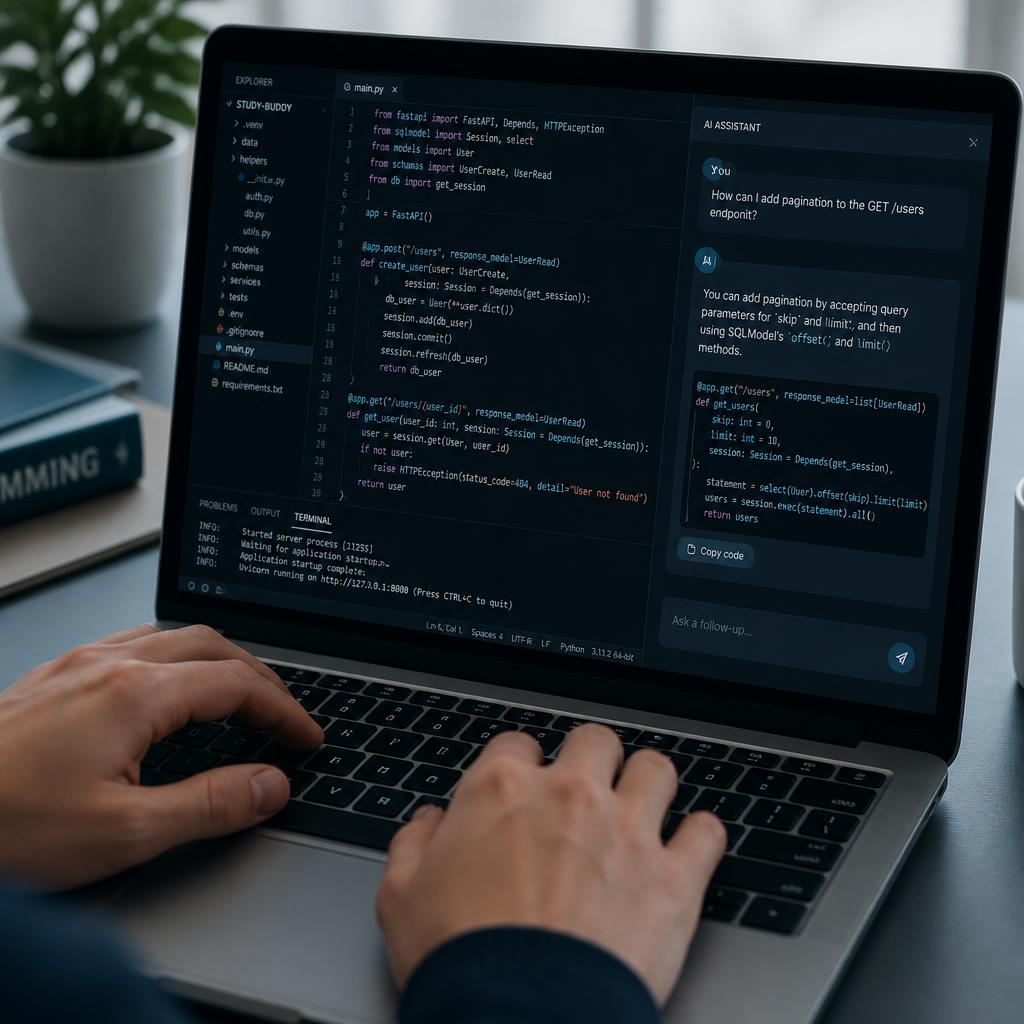
- Explain the project structure. Open a new or existing folder and ask Cursor to summarize what each file does and how they connect.
- Generate a starting point. Describe the goal — say, a simple to-do list script — and let Cursor generate a first working version.
- Understand the code. Highlight sections that don’t make sense and ask for a plain-language explanation before moving on.
- Find and fix errors. Run the script, paste any error message into Cursor’s chat, and review the suggested fix rather than blindly accepting it.
- Improve the project. Ask for suggestions on adding a new feature, like saving the list to a file, and review how the change fits into the existing code.
- Learn why the code works. Instead of just accepting a fix, ask “why did this work?” — this single habit is what turns Cursor into a learning tool instead of a shortcut.
This kind of workflow tends to work best for smaller academic or personal projects, which is also where a lot of the best AI tools for students overlap — coding assistants, writing helpers, and research tools all follow a similar “explain, generate, review” pattern.
Cursor vs Traditional Code Editors
If you’ve used a plain code editor before, like base VS Code without extensions, the difference with Cursor becomes obvious fairly quickly.
Traditional Code Editors vs. Cursor
See how deep AI integration fundamentally changes the everyday coding experience for developers.
Basic autocomplete based entirely on language syntax.
Intelligent, AI-predicted suggestions based on your entire project structure.
Manual code reading line-by-line, or using a separate AI chat window tab.
Ask questions directly inside the code workspace, fully aware of your project context.
Search online manually or copy-paste terminal errors into a standalone chatbot.
Paste the error directly into the editor terminal and instantly receive a contextual fix.
Open, track, and edit every individual file line by hand one by one.
Describe your target change just once, and let AI automatically apply it across multiple files.
Standard setup that is already very familiar to most students and developers.
The exact same familiar coding interface, but supercharged with an added AI layer.
The core idea is that a traditional editor is a blank canvas, while Cursor is a canvas with an assistant sitting next to you who already knows what you’ve written so far.
Cursor AI vs Other AI Coding Tools
Cursor isn’t the only AI-powered coding tool available to students, and it’s worth knowing roughly where it fits. Tools like GitHub Copilot focus mainly on inline code suggestions inside editors you already use, while Cursor is a full editor built around AI from the ground up, which gives it deeper multi-file and agent-style capabilities. Other AI assistants, including general-purpose ones, can help explain concepts or write snippets, but they usually don’t have direct access to your actual project files the way Cursor does.
None of these tools are strictly “better” in every situation — it often comes down to whether you want AI features added to your existing editor, or an editor built entirely around AI from day one, which is the category Cursor sits in.
Responsible Use for Students
AI coding tools are only useful if you actually learn something from using them. A few habits worth keeping in mind:
- Verify AI-generated code instead of assuming it’s correct just because it runs
- Understand what the code does before submitting it as part of an assignment
- Check for bugs and edge cases that the AI might have missed
- Protect private information, like API keys or passwords — never paste them into AI tools, including Cursor
- Follow your school or university’s academic integrity rules around AI-assisted work
- Don’t submit AI-generated code as entirely your own if your coursework rules say otherwise
If you’re working with any sensitive credentials inside your projects, it’s worth understanding the basics of protecting them — our guide on deepfakes and digital security covers some of the broader habits worth building around AI tools and personal data.
Used this way, Cursor becomes closer to a patient tutor than an answer machine — which is really the more useful way to think about any AI coding assistant as a student.

Frequently Asked Questions
Is Cursor really free for students?
The Hobby plan is free for everyone, students included, with no university email required. A separate free year of Cursor Pro for students was available for a period but closed to new sign-ups in mid-2026. Check cursor.com/students for the current status before assuming an old promotion is still active.
Does Cursor still offer a 7-day or 14-day free trial of Pro?
Not currently. Cursor’s support team has confirmed there’s no dated trial period on paid plans right now. The Hobby plan is the free option available to everyone instead.
Do I need a university email to use Cursor?
No, not for the free Hobby plan. A university or college email may be required only if a specific student promotion or verification step is active at the time you sign up.
Can beginners use Cursor without coding experience?
Yes. Cursor’s plain-English chat and code explanation features are genuinely helpful for people who are new to programming, though it works best alongside actually learning the fundamentals, not as a replacement for them.
Is using Cursor considered cheating?
It depends entirely on your school’s specific academic integrity policy. Using Cursor to learn, debug, and understand code is generally fine; submitting AI-generated work as fully your own when your coursework rules prohibit that is not.
Conclusion
Cursor is an AI-powered code editor that blends a familiar VS Code-style interface with AI features built directly into how you write, edit, and debug code. For students, the appeal isn’t hype — it’s the practical time saved on debugging, the plain-language explanations of confusing code, and the ability to prototype small projects faster.
As for access: the free Hobby plan is open to every student right now with no verification required, while the widely shared “free year of Pro” student offer has closed to new sign-ups as of mid-2026, with newer student perks now tied to Cursor’s seasonal campus events instead. There’s also no standing free trial on paid plans at the moment, so Hobby is genuinely the practical starting point for most students today.
Used thoughtfully — as a tool for understanding code rather than a shortcut around learning it — Cursor is one of the more useful additions to a student’s toolkit in 2026. AI Tech Pulse will keep tracking how Cursor’s student programs evolve, since offers like this tend to change more often than most students expect.