
Let’s start with the honest part. If you searched for how to extend video duration in Runway Gen-3, there is something you need to know first: Runway has retired Gen-3. The old one-click Extend workflow that many tutorials still describe is gone, but you can still get long, clean videos out of Runway today with a different method. At AI Tech Pulse, where we test and explain practical AI tools in plain language, we would rather save you an hour of hunting for a button that no longer exists. So this guide covers what changed, what works now, and how to keep quality high while your clip grows.
Think of it like a relay race. Each short clip runs a leg, and your job is to hand the baton over cleanly.

The Quick Reality Check: How to Extend Video Duration in Runway Gen-3 Today
According to Runway’s Help Center, Gen-3 Alpha was retired on July 8, 2026, and Gen-3 Alpha Turbo on July 30, 2026. Runway points users to Gen-4.5 for text to video and image to video instead. Runway also keeps a page listing deprecated standalone tools, which is worth a look if an old tutorial mentions something you cannot find.
For context, Runway’s changelog says Gen-3 Alpha videos could once be extended to about 40 seconds, and Gen-3 Alpha Turbo to about 34 seconds. That is why so many people still search for it. Today, the picture looks like this:
That “not listed” line matters. Runway’s Gen-4.5 guide lists text and image inputs and clip lengths of 2 to 10 seconds, but no separate extend control. Features can change quickly, so if you see an Extend option in your own account, use it and treat this guide as the backup plan.
What “Without Losing Quality” Really Means
When people say quality loss, they usually mean the character’s face slowly changes, colors and lighting shift, the picture gets softer, or you can see an obvious jump where two clips meet.
One possible cause is that every new clip starts from whatever the last one produced, so small mistakes can pile up. Another is a poor handoff frame, such as one that is blurry or caught mid-blink. The good news is that most of this is in your control, and none of it needs advanced skills.
Runway Gen-3 Complete Tutorial: How to Extend Videos
How to Extend Video Duration in Runway Gen-3: The Relay Method
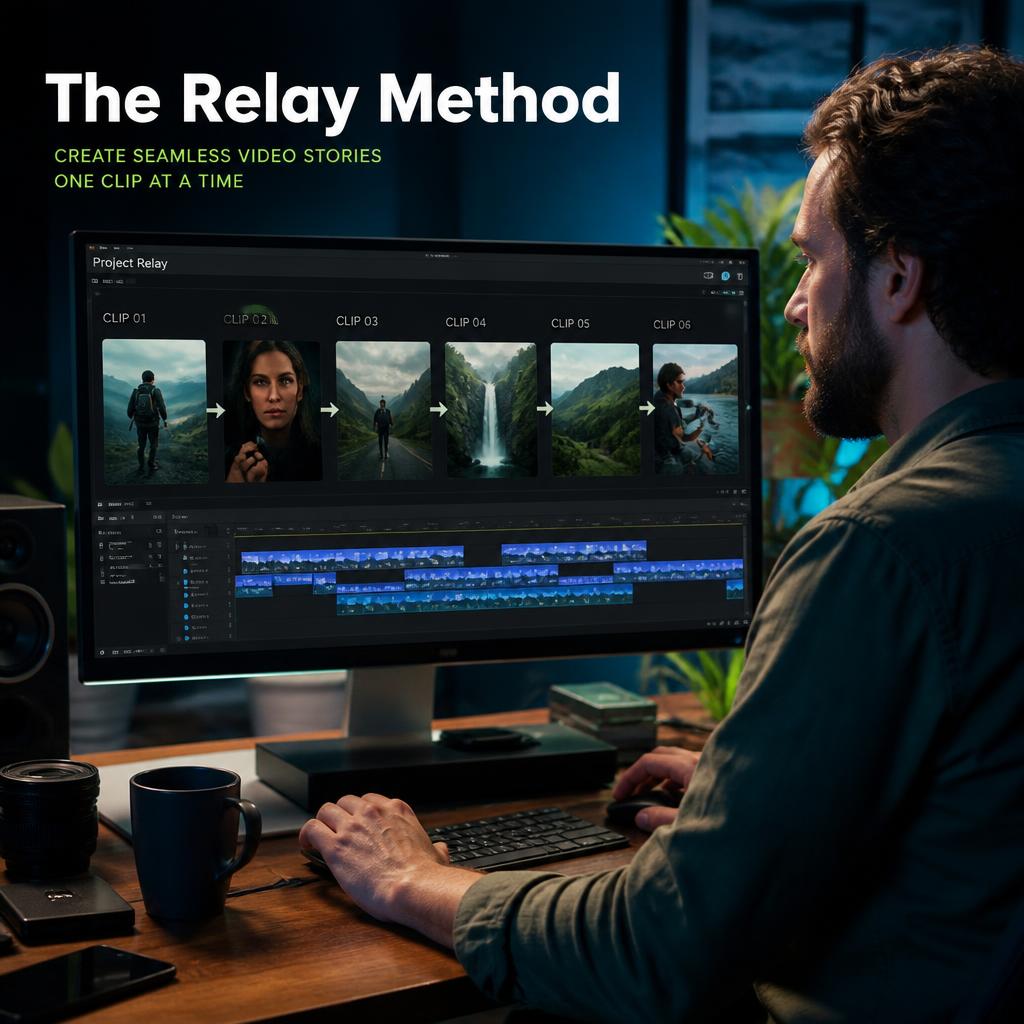
Runway’s own guide on creating longer videos and films says generative clips are building blocks, and longer content comes from combining several of them. Here is a simple way to do exactly that.
Step 1: Plan your shots before you generate
Write down what happens in each clip, in order. Runway suggests thinking in shots of roughly 5 to 10 seconds. A rough plan like “wide shot, slow push-in, close-up of the reaction” already saves credits, because you stop guessing halfway through.
Step 2: Generate the first clip
Open the video generator, pick Gen-4.5, and choose a duration between 2 and 10 seconds. Runway’s guide notes that prompts with several actions in a row can benefit from longer durations. If your first clip only needs one simple movement, keep it short. Shorter clips are cheaper to redo.
Step 3: Pick a clean handoff frame
Scrub through your finished clip and choose the sharpest, steadiest frame near the end. Do not automatically pick the very last frame. If motion blur or a half-closed eye shows up there, go back a few frames.
Runway’s Gen-4 video guide describes a “Use Current Frame” option under “Continue working with your output,” which loads the frame you are previewing as the image input. That page covers an older model generation, so the menu may look a little different in Gen-4.5. If you cannot find it, export or screenshot the frame at full quality and upload it as your start image instead.
Step 4: Generate the next clip from that frame
Use Image to Video with your handoff frame as the first frame. Runway’s changelog notes that Gen-4.5 supports a first-frame image alongside your text prompt.
Write the prompt for what happens next, not a recap of the whole scene. Repeat the look words that keep the style steady, like the lighting, lens feel, and mood. Keep the same aspect ratio as clip one. If you use the advanced settings, keep the frame rate the same too. Gen-4.5 lets you choose between 24 and 25 fps.
Step 5: Repeat, but do not chain forever
Three or four clips in a row usually feels comfortable. After that, small changes may add up. If your character starts to look different, go back to your original reference image and start the next leg from there, then hide the switch with a cut.
Step 6: Stitch everything together
Runway’s Studio, added in June 2026, lets you trim, stitch, reorder, and export a final video in one place. You can also use any editor you like. Trim the first and last few frames of each clip where the model sometimes settles into its motion, and use a simple cut or a short crossfade at the seams.
If you are still comparing tools, our roundup of the best AI video generators in 2026 shows how Runway stacks up against other options.
How to Extend Video Duration in Runway Gen-3 Without Losing Quality
- Start from a strong image. A sharp, well-lit handoff frame gives the next clip a better foundation than a soft one.
- Cut, don’t blend, when in doubt. A clean cut hides small differences better than a long dissolve between two similar-but-not-identical shots.
- Keep prompts consistent. Reuse the same description of your subject and setting in every clip.
- Ask for less action. One clear movement per clip usually looks better than three rushed ones.
- Be careful with slow motion. Stretching a clip to fill time can make motion look choppy. Runway’s guide notes that retiming a video does not spend credits, so you can experiment, but judge the result by eye.
- Save drafts for cheaper testing. Gen-4.5’s spec page lists unlimited generations in Explore Mode, though your plan decides what you actually get.
What Will This Cost in Credits?
Gen-4.5 costs 12 credits per second, according to Runway’s Help Center. Here is a rough guide, assuming you get each clip right the first time, which is rarely true.
Add extra for retries. Plan around 30 to 50 percent more, and use shorter test clips before committing to full 10-second renders.
Want Longer Clips in One Go?
Runway’s changelog lists third-party models inside the platform, and one of them, Seedance 2.5, is described as generating up to 30 seconds of video with first-frame and last-frame controls. Availability depends on your plan and where you use it, so check the model selector in your account before planning around it. It can reduce the number of handoffs, but you still need to judge the results for your own project.
Runway also has an Agent that can help develop and produce multi-shot videos through conversation. If you are curious how that differs from a normal chatbot, our explainer on AI agents vs chatbots breaks it down simply.
Common Problems When You Extend Video Duration in Runway Gen-3
What About My Old Gen-3 Clips?
If you still see old Gen-3 videos in your account, download the ones you care about now. You can also use their final frames as starting images for a continuation in Gen-4.5. It will not be an identical match, but with a careful prompt it can get close.
Frequently Asked Questions About How to Extend Video Duration in Runway Gen-3
Can I still extend video duration in Runway Gen-3?
No. Runway’s Help Center says Gen-3 Alpha and Gen-3 Alpha Turbo were retired in July 2026, so you need to work with current models like Gen-4.5.
How long can a Runway clip be now?
Gen-4.5 supports 2 to 10 seconds per generation according to Runway’s guide. Longer videos come from chaining and editing several clips.
Is there still an Extend button in Runway?
Gen-4.5’s spec page does not list one. If your account shows an Extend option, you can use it, but the last-frame method works regardless.
How do I keep the same character across clips?
Use the same reference image, keep your subject description identical in every prompt, and restart from your original image if drift appears.
Do I need a paid plan?
Runway lists Gen-4.5 as available on Standard plans and higher. Plans change, so check your account.
Does trimming or changing speed cost credits?
Runway’s guide says retiming a video does not spend credits. Generating new clips does.
Can I make a one-minute video?
Yes, by chaining and editing around six to eight clips. It needs planning, more credits, and a few re-anchors to keep the look consistent.
Which video quality settings matter most?
Sharp handoff frames, a consistent aspect ratio, and the same frame rate across clips make the biggest difference.
Conclusion
To extend video duration in Runway today, forget the old Gen-3 button and think in shots. Plan your clips, pick a clean handoff frame, continue with Image to Video, and stitch the pieces together in Studio or your favorite editor. Keep prompts consistent, restart from your reference image when the look drifts, and use cuts to hide the seams.
No method is perfect, and every new model update can change what is possible, so check Runway’s changelog now and then. If you use AI video to grow a channel or a small business, you might also enjoy our guide to making money with AI in 2026, and you can find more practical tutorials at AI Tech Pulse.